pomodoro timer for Mac
updated · by Anton Shakirov
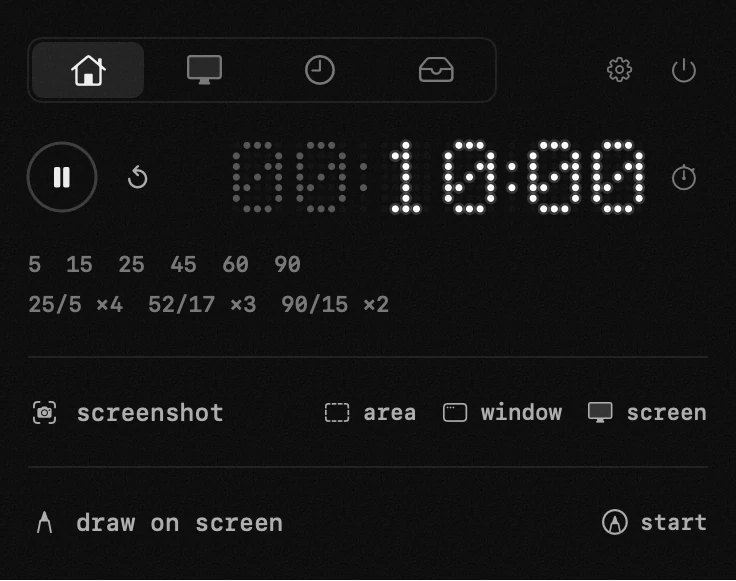
macOS can count down ten minutes for you. what it cannot do is keep a rhythm: no work-rest cycle, no preset of your own, no way to turn a running countdown into a stopwatch. that is the part hop does.
| what it is | timer inside hop, a menu bar app for macOS |
|---|---|
| price | free — no trial, no pro tier, no account |
| licence | MIT, source on GitHub |
| requires | macOS 14 or later, Apple silicon or Intel |
| works offline | yes |
| data sent anywhere | none |
how to set a timer in your Mac menu bar
setting one takes a gesture: drag the digits, type the time the way you would on a microwave, or tap a preset you made for the thing you time every day. from there the countdown lives in the menu bar rather than in a window you have to keep open — and when it ends it sounds once and keeps blinking, which is the difference between a timer you notice and a timer you miss.
the presets, the work-rest cycles and what the finish alert can do to your media — the handbook end of this, in your own language: the timer in the guide
the countdown lives in the same icon as the rest of hop, so it is one item up there rather than another one competing for the room you have left. on a Mac with a notch that room runs out sooner than people expect: where menu bar icons go behind the notch
what the built-in Clock timer does, and where it stops
start here, because for a lot of people this is the whole answer. the Clock app has a Timers tab and it is better than its reputation: presets for round numbers, recent timers you can restart with one click, and since macOS 14.2 several running at once, each with its own name and sound.
it also does the thing most people assume it cannot: a Clock timer keeps counting while your Mac sleeps. it is not a running app pretending to be a timer, it is a scheduled event the system owns.
Apple's own wording, in the Clock user guide: «it continues even if you open another app or if your Mac goes to sleep» — set timers in Clock on Mac
how to show the timer in the menu bar on a Mac
it is one of the first things people ask about timers on a Mac, and the answer changed recently. macOS 26 ships a Timer item for the menu bar: it is a Control Center module, off until you switch it on in System Settings under Control Center, where the list of menu bar items lives.
turn it on and a running Clock timer counts down at the top of the screen like any other status item. so «a countdown in the menu bar that survives sleep» needs no install any more, and a page telling you otherwise is describing an older Mac.
the menu bar changed in more ways than this that year, and some of it broke third-party utilities outright: what macOS 26 changed for menu bar apps
where the built-in timer stops
it stops at rhythm. Clock has no work-rest cycle of any kind: nothing repeats, nothing alternates, nothing knows that five minutes of rest follows twenty-five of work. the Repeat setting there belongs to alarms and means days of the week, not rounds.
its presets are the system's round numbers, not yours: you cannot save «writing, 52 minutes» and reach for it tomorrow, only restart what you happened to run before. the stopwatch is a separate tab, so a countdown you are in cannot become one. and a timer you want to set aside has to be cancelled.
none of that matters for eggs and laundry, so: one-off timer, use Clock, and in macOS 26 put it in the menu bar while you are there. the simple case ends the moment the timer stops being a one-off and becomes a rhythm you keep all day.
pomodoro and other work-rest cycles
25 and 5 is built in, and so are 52/17 and 90/15 for people whose attention does not come in twenty-five minute pieces. the cycle runs itself: work, rest, work, without you restarting anything at the boundary.
is 25/5 or 52/17 better
neither. twenty-five minutes is short enough that starting is easy, which is the point when the problem is starting. fifty-two is long enough to get into something that needs a running start, which is the point when the problem is depth.
the cycle is a rhythm, not a doctrine, and the right one is the one you keep. a ratio you invented and stick to beats a famous one you abandon by Wednesday. that is why your own takes two numbers and repeats.
and if the question underneath is not «how long do i work in one stretch» but «where did the day actually go», that is a different tool in the same panel: the time tracker
a menu bar timer that does not lose a second
this is the defect the category is known for, and it matters who actually has it. Apple's Clock does not. many of the small menu bar timers people install instead do, and «my timer did not go off after the Mac woke up» is one of the things people search for about them.
why a menu bar timer drifts after sleep
a timer written the easy way counts: it ticks once a second and subtracts one. that holds while the app is awake and stops being true the moment it is not. shut the lid for ten minutes and the countdown is ten minutes wrong, because nothing ticked while the Mac slept.
even awake, ticking is not exact. macOS shifts when timers fire so it can wake the processor once for several of them instead of once each, and a long countdown built out of ticks accumulates that slack. Apple asks developers to allow it precisely because it saves power: minimize timer use
hop stores the moment the timer is due rather than the seconds remaining. there is nothing to accumulate and nothing to miss: the Mac can sleep, the panel can close, and the time in the menu bar is still right when you come back. it is the same approach Clock takes, which is why Clock is the honest benchmark for the rest of us.
if what you actually need is for the Mac not to sleep at all — a download, a render, a long copy — the timer is the wrong tool and there is a right one: keeping a MacBook awake with the lid closed
stopwatch, and a place to park a timer
one tap turns the countdown into a stopwatch, for when the question is how long something took rather than how long is left. no tab to switch, nothing to start over.
a running timer can also be stashed while you try another, so timing a task does not cost you the pomodoro you were halfway through. when a countdown ends it plays a single sound and the digits pulse until you reset them, and it can pause whatever media was playing, so the end of a round is not something you miss with headphones on.
how this pomodoro timer compares
there are dozens of pomodoro apps for macOS and many are pleasant. some add distraction blocking, statistics and streaks. if that is what keeps you honest, those apps are built around it and this one is not. plenty are free and at least one good one is open source: nobody gets to call themselves the only option here.
| what you need | the built-in way | with hop |
|---|---|---|
| a timer for ten minutes, once | Clock, Presets, Start — and it survives sleep | not needed, use Clock |
| the countdown visible in the menu bar | macOS 26 has it: switch on the Timer item in Control Center settings | it is there already, nothing to switch on |
| 25/5 all day without touching it | no cycles at all, restart by hand every round | the cycle runs itself |
| your own rhythm — 52/17, or something you invented | presets are the system's round numbers, yours cannot be saved | 52/17 and 90/15 built in, your own in two numbers |
| how long that took, starting from the countdown you are in | Stopwatch is a separate tab, start again from zero | one tap turns the countdown into a stopwatch |
| a third-party menu bar timer that lied after the Mac woke | — | the due moment is pinned, not ticked toward |
what is left: a timer one click away that keeps its own time correctly, keeps a rhythm the Clock app has no concept of, and does not ask to become a productivity system. it also sits in the same icon as eighteen other things.
the keep-awake switch lives one row down in the same panel: keeping a Mac awake
and so does the clipboard, the other thing people open a menu bar app for: clipboard history
frequently asked questions
- does macOS have a built-in pomodoro timer?
- it has a timer, not a pomodoro. the Clock app counts down, keeps presets and recent timers and runs several at once, but it has no work-rest cycles: nothing repeats or alternates on its own.
- how do i show the timer in the menu bar on my Mac?
- in macOS 26 the Timer is a Control Center item: System Settings, Control Center, find Timer in the menu bar list and switch it on. a running Clock timer then counts down at the top of the screen.
- does the timer keep running when my Mac sleeps?
- in hop, yes: it pins the moment the timer is due rather than counting seconds, and Apple's Clock does the same. many small third-party menu bar timers do not, which is why a countdown can come back wrong after the lid was shut.
- can i set my own work-rest cycle?
- yes. 25/5, 52/17 and 90/15 are built in, and your own takes two numbers.
- can i run a stopwatch instead?
- yes, one tap switches the countdown into a stopwatch, without leaving what you were timing.
- what happens when the time is up?
- it sounds once and the digits keep blinking until you reset. it can also pause media that is playing.
- can i keep two timers?
- a running timer can be stashed while you use another, so you do not lose the cycle you were in the middle of.
other tools in hop
- clipboard historyeverything you copied — text, links, screenshots and whole files.
- screenshotsan area, a window or the whole screen — marked up before it leaves the screen.
- qr code scannerread the code where it sits on screen — no reaching for your phone.
what people do with this
what people pay for this
| app | price | what you get instead |
|---|---|---|
| TomatoBar | free, open source | a timer that keeps its own time while the Mac sleeps. |
| hop | free, MIT | work-rest cycles that survive a sleeping Mac. |
prices checked at the vendor's own page on 2 september 2026
about the author

Anton Shakirovmakes hop
makes hop and every page on this site. twenty tools under a single menu bar icon, MIT licensed and open source. reads and answers issues and email himself.