window manager for Mac
updated · by Anton Shakirov
macOS tiles windows on its own now, and for two windows side by side it is the whole answer. it stops in two places: there are no thirds anywhere in it, and the keyboard only reaches about half of what the menu offers. hop puts eighteen zones a click or a ⌃⌥ hotkey away.
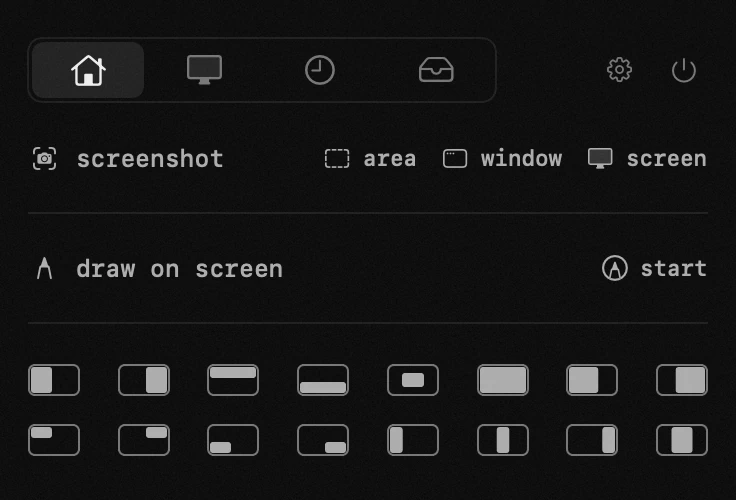
| what it is | window layouts inside hop, a menu bar app for macOS |
|---|---|
| price | free — no trial, no pro tier, no account |
| licence | MIT, source on GitHub |
| requires | macOS 14 or later, Apple silicon or Intel |
| works offline | yes |
| data sent anywhere | none |
what a window manager does on a Mac
a window manager puts a window where you want it without you dragging a corner and checking. you name a shape — left half, top right quarter, centre — and the window becomes that shape.
the question is narrower than it was, because macOS now does part of the job itself — so the honest version of this page starts with what you already have. eighteen zones is what hop adds to it:
- halves — left, right, top, bottom
- thirds — the three-column arrangement that makes a wide display worth having
- quarters
- centre, at a size you can actually read
macOS 26 moved a fair amount around on screen, the menu bar included. what macOS 26 changed for menu bar apps
what macOS window tiling covers on its own
since Sequoia, macOS tiles windows without anything installed. three ways in: drag a window to a screen edge or corner, hold the pointer over the green button, or open Window → Move & Resize from the menu bar. holding Option while you drag shows extra layouts.
the zones macOS gives you
- Fill — the window takes the whole desktop, without going full screen
- Center — the window is centred, at a sensible size
- halves — left, right, top, bottom
- quarters — the four corners
- Arrange presets that lay out two or three windows at once, like «left & quarters»
- Return to Previous Size, which undoes a tile and gives the window back
Apple's own list of what tiling offers and how to reach it: tile app windows — Apple Support
the shortcuts, and where they stop
the halves sit on fn-Control and an arrow key. Fill is fn-Control-F, Center is fn-Control-C, Return to Previous Size is fn-Control-R. the multi-window Arrange presets take fn-Control-Shift and an arrow, or fn-Control-Option-Shift for the ones involving quarters.
the four individual quarters have no shortcut at all. a corner is mouse work or menu work. that is the one thing the built-in tiling cannot do from the keyboard.
the full shortcut table, checked 10.09.2026: window tiling icons and keyboard shortcuts — Apple Support
that is more than the roundups admit. it is free, already installed, and for most of what people mean by «snap this window» it finishes the job.
so do you need a window manager at all
if your working shape is two windows side by side, or one window filling the screen and another centred for reading — no. press fn-Control-Left and fn-Control-Right and you are done, and nothing on this page will do it better.
the simple case ends in two specific places. the first is thirds: macOS has none, so a left two-thirds with a reference column beside it cannot be built from what is there. the second is the keyboard reaching a corner, which it does not.
there is a third reason people end up here, and it is not about windows at all — the module comes with an app they are already running for something else.
usually that something else is the clipboard. clipboard history for Mac
sometimes it is the timer sitting in the menu bar. pomodoro timer for Mac
how hop snaps windows into zones
the zone is a button and the window is whichever one you were last in: halves, quarters, thirds, two-thirds, centre or full screen, on whichever display it is on. the layouts you reach for every day go onto hotkeys, and after a week the panel stops being part of it at all.
the full grid against the compact row, the permission macOS asks for and why a window sometimes stops short of its zone — the handbook end of this, in your own language: the window manager in the guide
| what you are doing | built-in tiling | with hop |
|---|---|---|
| two windows side by side | fn-Control-Left, then fn-Control-Right | not needed — use the built-in shortcut |
| a reading window centred on screen | Center, on fn-Control-C | centre is one of the eighteen — same result either way |
| a left two-thirds with a reference column beside it | no thirds to build it from | one click, or a ⌃⌥ hotkey |
| a window into a corner without reaching for the mouse | the four quarters have no shortcut | any of the eighteen zones takes a ⌃⌥ hotkey, corners included |
| three columns across a wide display | halves and quarters only | left, centre and right thirds |
two of those five rows say «use the built-in one», and they are the two most common things people actually do. that is where this module stands in 2026: a wider set of shapes, and a keyboard that reaches all of them. a year ago the pitch was bigger than that.
thirds are what macOS window tiling still lacks
on a 27-inch display, halves are too much and quarters are too little. the shape that works is a two-thirds column for whatever you are making and a one-third column for whatever you are reading while you make it.
macOS cannot produce it. checked on 10.09.2026 against macOS 26: there is no third in Move & Resize, none behind the green button, and none among the extra layouts Option-drag reveals — those are quarters. the word does not appear in the system's own menu vocabulary at all.
hop has left, centre and right thirds among the eighteen, which is what the three-column arrangement is built from.
screen room is the same problem the notch created up in the menu bar. menu bar icons hiding behind the notch
hotkeys for the zones macOS has no key for
picking a zone from the panel is fine for the occasional rearrangement. the version that changes how you work is putting the two or three layouts you actually use on ⌃⌥ combinations and never opening anything.
this is where the built-in tiling runs out rather than where it is wrong. its shortcuts cover the halves, Fill, Center and the undo. the corners it can do, but only with the mouse; the thirds it cannot do at all. in hop any of the eighteen zones can take a hotkey, and there is nothing special about the corners or the thirds.
the small set most people end up with
almost everyone converges on three: a left two-thirds for the thing being worked on, a right third for reference, and a centred window for reading. once those are on keys, the panel stops being part of the loop and the whole module goes quiet.
the same trade — a key instead of a click — is what makes launching apps quicker too. open your apps without Launchpad
when window snapping does not go the way you expected
the window refuses to resize
some windows will not become the shape you asked for, and no window manager can change that: an app sets a minimum size for its own window, and a settings sheet or a dialog may not be resizable at all. the zone is applied as far as the app allows and no further.
you unplugged a display and the layout is gone
this is the thing people most want a window manager to fix, so here it is plainly. hop snaps the active window to a zone. it does not remember an arrangement of several windows and put it back for you, so after a display goes away you are re-snapping windows rather than watching them return.
with the layouts on hotkeys that is a few keystrokes instead of a few minutes of dragging. faster than doing it by hand, and not the same thing as an automatic restore.
the Mac slows down before the windows do
a screen full of windows is sometimes the memory problem rather than the layout problem. fix «your system has run out of application memory»
frequently asked questions
- can i use keyboard shortcuts?
- yes. any of the eighteen zones can go on a global ⌃⌥ hotkey, so the mouse is optional. macOS has its own tiling shortcuts, but they stop at the halves, Fill, Center and the undo — the four quarters have none.
- does macOS have thirds?
- no. checked 10.09.2026 on macOS 26: Window → Move & Resize offers halves, quarters, Fill and Center. holding Option while dragging reveals more layouts, but they are quarters, not thirds.
- do i still need this now that macOS tiles windows?
- if two windows side by side is the whole need, no — the built-in shortcuts cover it and cost nothing. thirds, and getting a corner from the keyboard, are the two places the built-in tiling stops.
- does it work with multiple displays?
- zones apply to the display the active window is on.
- does it put my layout back when i unplug an external display?
- no. the module snaps the active window to a zone; it does not store an arrangement and restore it. with your layouts on hotkeys, rebuilding is a keystroke per window rather than an automatic return.
- how is this different from split view?
- split view takes over a whole desktop and only holds two apps. these are ordinary windows, resized in place, as many as you like.
- is it really free?
- completely, along with the other eighteen tools.
other tools in hop
- system monitorload, temperatures, memory and battery — quiet until something is wrong.
- torrentsdrop a file or paste a magnet link — it downloads in the panel.
- color pickerany pixel on screen, in hex, rgb and hsl at once.
what people pay for this
| app | price | what you get instead |
|---|---|---|
| Magnet | $4.99 one-time | window snapping that comes with eighteen other tools. |
| Rectangle | free, open source | window layouts as one of twenty tools rather than an app of their own. |
| hop | free, MIT | eighteen zones, one click or one hotkey. |
prices checked at the vendor's own page on 2 september 2026
about the author

Anton Shakirovmakes hop
makes hop and every page on this site. twenty tools under a single menu bar icon, MIT licensed and open source. reads and answers issues and email himself.