an app launcher that lives in the menu bar
updated · by Anton Shakirov
the applications folder holds everything you have ever installed. the Dock holds whatever ended up there. what macOS 26 no longer holds anywhere is an arrangement of your own — Launchpad went, and the folders and the order you put things in went with it. hop keeps a short grid of the apps you actually open behind one menu bar icon, and lets each space have its own.
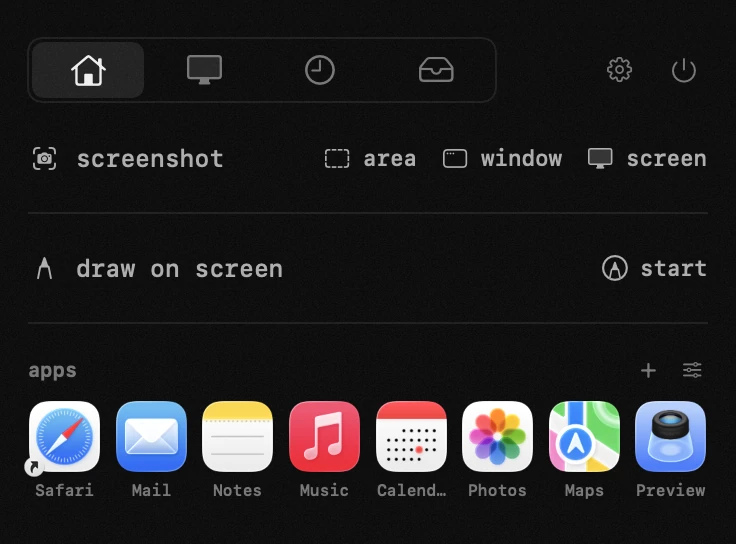
| what it is | app launcher inside hop, a menu bar app for macOS |
|---|---|
| price | free — no trial, no pro tier, no account |
| licence | MIT, source on GitHub |
| requires | macOS 14 or later, Apple silicon or Intel |
| works offline | yes |
| data sent anywhere | none |
what a Mac app launcher has to do now that Launchpad is gone
macOS 26 replaced Launchpad with an Apps screen on the same Dock icon — a mode inside Spotlight rather than an application of its own. it opens every app you have, and it arranges none of them.
Apple documents the route in the macOS user guide: view and open apps on Mac
what went with it
the arrangement. the folders you made, the pages you spread things across, the order you put them in — none of it came over, and there is no setting that brings it back.
every way in to your apps after the change — the keyboard route, the trackpad pinch, and what the Apps screen does and does not do — has its own page: open your apps without Launchpad
there is nowhere left to keep an arrangement
it reads like an oversight that a later release will fix, so here is what is actually on disk. on a machine running macOS 26.6.2, build 25G83: Launchpad.app is not in /System/Applications at all, Apps.app sits where it used to be, the Dock's support folder holds nothing but desktoppicture.db, and the Dock's own preferences carry zero keys with springboard in the name.
the database is gone and the keys are gone. it is not a hidden setting — the storage for a layout of your own is no longer there, which is why every route back to one is something you build outside the system.
the same conclusion, argued at length by developers looking for the setting: Tahoe Launchpad
the free route: a folder of aliases in the Dock
before anything else, the answer people give each other on Apple's own forums, because it costs nothing and it works. make a folder, fill it with aliases of the apps you want, drag the folder to the right-hand side of the Dock, then control-click it and set how its contents show.
four moves: a folder anywhere, each app option-command-dragged into it so what lands there is an alias rather than the app itself, the folder onto the Dock right of the divider, then control-click and pick grid so it opens as a sheet of icons.
the display options, in Apple's wording — «view its contents as a fan, grid, or list»: use folders in the Dock
what it costs
manual work, and it does not stop after the first afternoon. the grid is a folder listing, so its order is the folder's order and not yours to arrange by dragging. an alias points at a path, so an app that gets renamed or moved leaves a dead icon behind. and one folder is one set: keeping work apart from everything else means a second folder, a second Dock slot, and remembering which one you are aiming at.
the shape of the sheet is not yours either — the Dock decides how wide the grid runs and how large the icons come out, and there is no row count to set.
the menu bar itself changed in the same release, and a launcher that lives there inherits those rules: what macOS 26 changed for menu bar apps
so what should you actually do
if you open apps by typing their names, none of this is your problem: ⌘Space and three letters is faster than any grid and always was, including back when Launchpad existed.
the folder-in-the-Dock route covers the simple case — one short set, arranged once, never rearranged. the simple case ends when you want the order to be yours, or want more than one set, or find yourself rebuilding the folder every time an app moves.
what a curated grid gives you that a folder cannot
hop's grid is a set you curate rather than a folder it reads: you decide what goes in, where each icon sits, and how wide the rows run. it opens from the menu bar icon that is already there.
one more icon in the menu bar is not free on a MacBook, and there is a limit to how many the bar shows you: menu bar icons behind the notch
putting one together takes about a minute and then stays put: apps come in from Finder or from a picker, dragging sets the order, and the row runs as wide as you want it, three icons to nine. names under the icons are optional — turn them off and the grid is the shape of your own memory rather than a list to read.
which buttons do what, where the row width and the names are set, and how a grid gets a name of its own — the handbook end of this, in your own language: the app grid in the guide
a grid per space
grids are named and there can be several, one to a space. work apps on one desktop, everything else on another, and switching spaces switches the set in front of you. the Dock cannot do that without becoming a list of everything you might ever need at once, which is how docks end up thirty icons wide.
if grids per space are the part you came for, the module that arranges the windows inside those spaces sits next to it: window manager for Mac
| what you are doing | the free route | with hop |
|---|---|---|
| opening an app whose name you know | ⌘Space, three letters, return | not needed — Spotlight is faster, and was faster than Launchpad too |
| getting the Launchpad layout you had back | rebuild it by hand — nothing carries it over | rebuild it by hand — nothing carries it over here either |
| reaching the six apps you open all day | a folder of aliases in the Dock, shown as a grid | a grid behind the menu bar icon, in the order you left it |
| putting them in an order that makes sense to you | the folder's own order, which you do not set | drag an icon where you want it, the rest shuffle around |
| keeping work apps apart from everything else | a second folder, a second Dock slot, and you pick the right one each time | a named grid per space — switching desktops switches the set |
| making the sheet fit the screen you are on | the Dock decides the width and the icon size | three to nine across a row, names off if you want them off |
what a grid is good at, and where Spotlight wins
typing a name works when you remember the name. a visible grid answers the other case: the app you open twice a week whose name is one word off from something else, or the one you installed for a project and would have to think about.
for the fifteen apps you open every day, Spotlight is quicker and always there. this is the second tier — frequent enough to want at hand, not frequent enough to have memorised.
when the grid stops helping
when it stops being short. past a couple of dozen icons you are scanning a wall instead of pointing at a thing, and scanning is slower than typing — that is the point at which the Applications folder and Spotlight are the right answers again.
two things it does not do, so they are not a surprise later: it does not bring Launchpad back, and it does not make folders inside the grid. a grid that needs folders has stopped being short.
an app that made the grid once and has not been opened since is usually a candidate for going altogether, along with what it left behind: app uninstaller for Mac
and if it is one specific app you have already decided about, the removal is a job of its own: uninstall an app with its leftovers
frequently asked questions
- is there an app launcher in the menu bar on Mac?
- not built in. macOS puts app browsing in Spotlight and the Apps screen, both of which show everything you have installed rather than a set you choose. a short arranged grid in the menu bar is something you add.
- what replaced Launchpad in macOS 26?
- an Apps screen on the same Dock icon — a mode of Spotlight rather than an app of its own: a grid of everything installed, a search field and category tabs. it opens apps well and arranges nothing.
- can i get my Launchpad layout back?
- no. the layout database is not on the system any more and the Dock keeps no keys for it, so there is nothing left to restore from. any arrangement now is one you build again.
- how is this different from the Dock?
- the grid can differ per space, holds only what you put in it, and lives behind one menu bar icon rather than along the edge of the screen.
- can i just put a folder of apps in the Dock instead?
- yes, and it is the right answer for one short set — control-click the folder in the Dock and show its contents as a grid. what you give up is the ordering, a set per space, and aliases that survive an app being moved or renamed.
- can i have different apps on different spaces?
- yes — grids are named, and every space can carry its own.
- can i hide the app names?
- yes, leaving just the icons, and you choose how many fit across a row — three to nine, eight by default.
- does hop show all my installed apps?
- no, only the ones you put in it — that is the design. a grid is useful while it is short; the full list is what Spotlight and the Applications folder are for.
other tools in hop
- screenshotsan area, a window or the whole screen — marked up before it leaves the screen.
- qr code scannerread the code where it sits on screen — no reaching for your phone.
- keyboard lockwipe the keyboard clean without shutting the Mac down.
what people do with this
what people pay for this
| app | price | what you get instead |
|---|---|---|
| Brow | free + Pro $4.99/mo | forty free tools against twenty, and only one of the two publishes its source. |
| Bartender | from $12 one-time | a cluttered menu bar fixed by having fewer icons, not by hiding them. |
| hop | free, MIT | the apps you open all day, one click away. |
prices checked at the vendor's own page on 2 september 2026
about the author

Anton Shakirovmakes hop
makes hop and every page on this site. twenty tools under a single menu bar icon, MIT licensed and open source. reads and answers issues and email himself.