screenshots
updated
Frame an area, take the window under the pointer or a whole screen, and the editor opens with the picture already in it. Mark it up with a pencil, a marker, arrows, shapes, numbered steps and text, hide what nobody needs to see behind a blur or a mosaic — or blur everything EXCEPT the part you are pointing at. Then save the file or copy it to the clipboard.
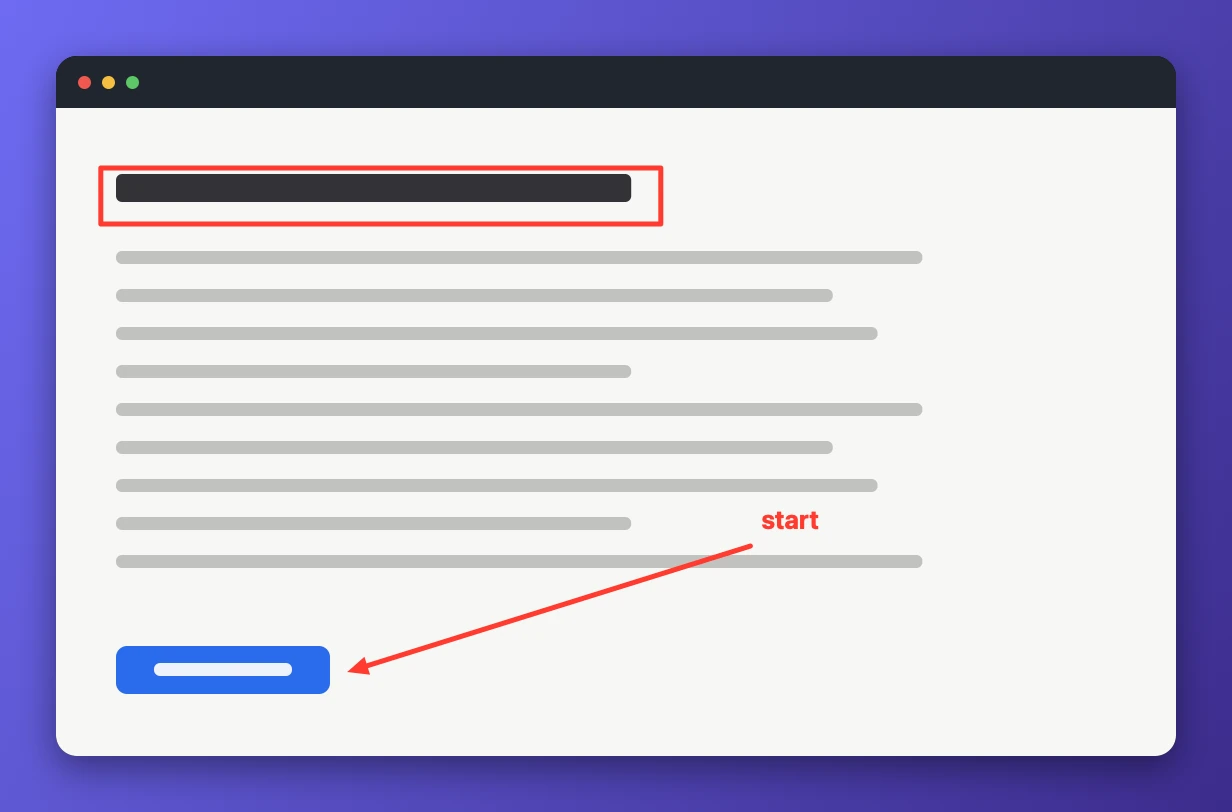
The same rectangle can be taken again with one key, which is what a series of screenshots of one screen usually needs. A shot can be dressed for a page: a background, air around the frame, rounded corners, a shadow, a browser window bar — and your own watermark, in text or as an image.
- taking one – drag a frame for an area, or take a single window or a whole display; the last area repeats on a key of its own. hairlines through the pointer show the row and the column before the first pixel, and the size in pixels while the frame is drawn.
- marking it up – arrows, lines, boxes, ovals, freehand, a marker, numbered steps, captions and an eraser, each on its own letter. blur covers what must not be read, the loupe magnifies a corner, crop takes the rest away.
- changing your mind – the arrow picks a mark up again: move it, pull its handles, retype a caption, delete it. ⌘z steps back, ⇧⌘z forward.
- dressing and watermark – the picture can sit on a background with a shadow and rounded corners, or in a browser frame with an address; a watermark of your own text or image goes in a corner or across the whole picture.
- where it lands – save writes a png or jpg onto the desktop, and the folder is yours to change; the name of the file and the folder are said afterwards, and the card opens Finder on it. copy puts the picture on the clipboard. the file's name can be typed before either.
- screen recording – macOS asks for it once: a picture of the screen is exactly what that permission governs.
app permissions
screen recording — text recognition, screenshots, and the loupe and the blur over the live screen.
settings
- delay
- off
- include the pointer
- one window with tabs
- one colour for all tools